Smart Distribution System
Agilion Distribution
The Agilion Distribution solution by Agili Group is a full-fledged WMS and
distribution solution for Microsoft Business Central, which includes bar-code
scanning, mobile device support, tote picking, pallet/container management,
packing processes, Deliveries and more.
All integrated in
one package.
None of the below features are part of standard Microsoft Business Central but only our Agilion Distribution solution.
Deliveries
Standard Business Central does not support organizing deliveries. Whether you are a B2C web shop that sends many small packages every day, or a B2B company that sends a few large but complex shipments that require waybills, packing lists, insurance papers and more, you need to be able to organize, manage and consolidate your deliveries. The Delivery functionality helps you add items from different sales orders and organize your picks and packing per Delivery. The Delivery functionality is also the backbone of any integration to a freight platform as well as the management of your large multicolli, international, complex and expensive deliveries.
Bar code scanning and mobile devices
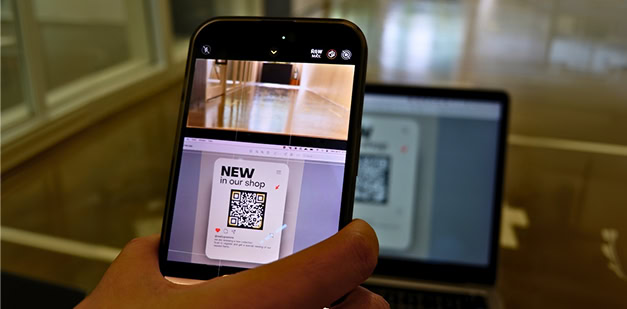
Entry in the warehouse and on the shopfloor fast and error free and can be used to keep processes tight and accurate. Our scanner solution supports both normal barcodes as well as QR codes for all warehouse processes: Receiving, Put-Away, Picking, Packing, Shipping, Moving, Physical inventory counting, Consumption, etc.
Container Picking
A "container" is any box, pallet, cart etc. that can be used to pick, store of put-away goods. A picking cart with 20 picking totes for multiple sales orders can be driven around the warehouse by the warehouse employee with instructions from the handheld scanner. A "container" can also be a pallet or cart that can be used to pick larger items. Our solution helps you keep track of which boxes, pallets, carts, etc. come with which orders.
Colli Packing
Once you have picked your items, you must pack and ship them. Any box or pallet you send out the door is called a colli. Sometimes a shipment contains only a single colli, sometimes several. Our solution helps you scan goods into colli, keep track of how many packages each colli consists of and keep track of the contents of each colli, so you can print waybills, packing lists with weight, volume, etc.
Pallets
Manage and handle the pallets in your warehouse. Many distribution companies work with pallets as a storage unit. They receive full pallets, they store full pallets, they move full pallets around, and they ship full pallets. Our solution helps you handle your pallets.
Cubic based warehouse documents
In order to pick, store and move goods efficiently, it is a great advantage to be able to create picks, put-aways and movements based on cubage. This ensures that each cart or pallet is filled up to its full capacity and reduces the number of operations.
Calculation of reorder points
Companies with many products in stock often want to reorder when the stock falls below a certain reorder point. Our solution can calculate proposals for reorder points based on historical sales data.
Advanced Intercompany
Standard Business Central does not support a fully automated inter-company flow. With our solution, you can fully automate the exchange of all documents that are typically sent between companies in the same group: Sales/purchase orders, invoices, shipments, receipts, etc.
POS Solution. more...
Do you have retail shops from where you sell your products. Our solution includes a basic Point of Sales solution so you can easily service retail customers.
Expanded feature list
Below is a more detailed feature list
The list summarizes the main elements of the solution, but still many smaller enhancements are included.
Mobile Scanning Apps
Mobile scanning apps are used mainly in the warehouse to perform a whole range of processes easily and error free. Although you can use the apps by typing in information, the general idea is that all data entry is done by scanning a bar code. Scan the bar code of the Item, scan the bar code of the pallet, scan the bar code of the bin, and so on. Use these apps for picking, putting away, moving and a number of other warehouse processes.
Pick App
Use bar codes to pick items from the bins in your warehouse. The app will respond to item numbers, different variants, different units of measure and allow you to place each item into a picking tote on the trolley or on the trolley itself for larger items. You can type in the quantity or scan the items multiple times as you see fit.
Pallet picking App
Go to the bin where the pallet is placed and simply scan the pallet bar code to register the pick for all items on the pallet.
Colli packing App
Scan items into the shipping collies/boxes to make sure every item is accounted for before closing the boxes.
Create new
container App
Move container
content App
Convert container
to colli App
Move child
container App
Place one container into another container by scanning their bar codes. If, for example, you want to place a cardboard box on a pallet or a pallet into a shipping container.
Create container from
item App
Convert an item, such as a box of 20 pieces into a container so it can easily be shipped as a colli.
Top-down movement App
Use this app to replenish items from bulk storage bins from the top rack levels down to the bottom pick levels closer to the floor, by scanning their bar codes.
Distance movement App
Use this app to move a trolley of items from one area of the warehouse to another.
Put-away App
Use this app to put away loose items by scanning their bar codes.
Receiving App
Use this app to register the physical items you’ve received by scanning their bar codes. Compare the scanned items with those on the Delivery note to find discrepancies.
Cross-dock App
Use this app to both register the items you’ve received while marking them for cross-docking.
Container put-away App
Use this app to put away an entire pallet into a bin by simply scanning its bar code.
Inventory Counting
Easily count all items in your stock. Use regular inventory counting or cycle counting.
Container Management

Picking Tote
Trolley
Pallets
Parking Spots
Packing Stations
Sell entire pallet
Allow your sales staff to sell specific pallets you currently have in stock. For example, sell a pallet of goods that are all getting close to the expiration date.
Pick Entire Pallet
Ask the system to identify a stored pallet, that contains some or all of the items you need for a sales order and create a Warehouse Pick specifically for that pallet, rather than for each of the items on the pallet.
Pick consolidation
Assign Pick Containers
Pick Tote Labels
Check into Pick Trolley
Allocate items to Picking
Totes
Suggest Picking Tote
Build pallets when
receiving
Pallet Put-Aways
Container Hierarchy
Report
View on screen or print out a Container Hierarchy report that tells you where in the warehouse all your items are. For example: The 3 flashlights are in Picking Tote A, which is placed on Pick Trolley B, which is placed on Parking Spot C.
Variants, Units of Measure, Serial Numbers and Lot Numbers
It is often necessary to keep a more detailed record of the items in a container (a trolley, a picking tote, a pallet, etc.). We potentially need to track both Units of Measure, the Variants, the Lot Numbers and the Serial numbers of the items kept in the container. The solution will handle this.
Deliveries
Standard Microsoft Business Central does not support the concept of Deliveries. A Delivery is different from a Sales Order. A Delivery can consist of only part of the items on a Sales Order in the case where we do not have all items in stock. In this case, you’ll end up with multiple Deliveries for a single Sales Order. But a Delivery can also include items from multiple Sales Orders, which is very common in a B2B scenario where a big customer will place multiple sales orders at the same time but would like to have them consolidated into fewer Deliveries.
Our Delivery module helps manage exactly such scenarios and can integrate to any shipping platform you use to order freight with, whether you are a B2B company with relatively few, but complex Deliveries or a B2C company with many small and simple orders.

Create Deliveries
Combine Sales Orders
Delivery Progress Overview
Add Deliveries to Warehouse Shipmentа
Waybill and Packing list
Archive Deliveries
Reserve from Delivery
Complete Ship for Deliveries
Ship and Invoice Delivery
Prevent Combined Deliveries
Receiving Enhancements
We have enhanced the receiving and put away processes by allowing the user to establish a Physical Receipt list – a list of what has actually been received in contrast to the supplier’s Delivery note. In addition, we’ve improved the cross-dock functionality and developed a number of mobile scanning apps, as described in the section on Mobile Scanning Apps.

Create Put-Aways by
Cubage and Zone
Supplier Delivery
Note Qty
Physical Receipt List
Verify Physical Receipt
List
Verify Cross Dock
Enhanced Cross Docking
Mobile Apps
Various Enhancements

Create Warehouse Picks
By Cubage
Movements by Cubage
and Zone
Calculate Reorder Points
In standard Business Central, you can set up the system to suggest replenishment orders Purchase Orders, Transfer Orders, etc.) when your inventory drops below a certain level, called the Reorder Point. Since such Reorder Point are based on historic demand patterns, they continuously need updating.
With our solution, the system can calculate and suggest such reorder points based on historic demand data keeping them continuously up-to-date.
Contact Us
For more information about our Agilion Distribution solution as well as our Agilion Production solution, please contact us.